Dashboards
After you log in, you will see the Main Dashboard. It has Menus on the left and is comprised of Tiles on the right. You also have a search bar on the right (top section) which can you can use to search for an individual Student or Applicant. Once you the student or applicant you wish to view and navigate to the Student or Applicant Dashboard, you will see a list of their enrolments and/or applications and be able to navigate and view them in the Application or Enrolment Dashboards.
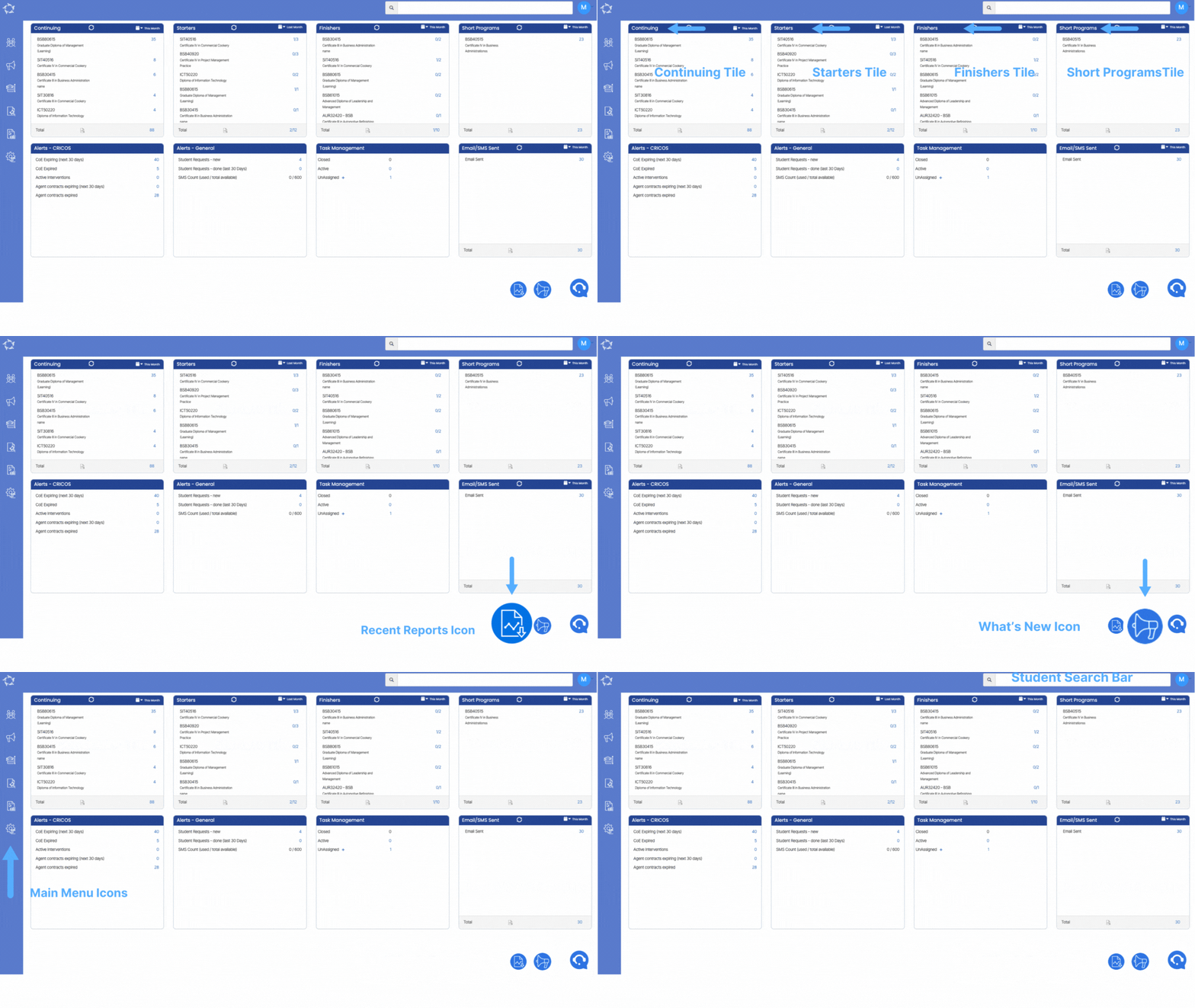
Menus are arranged according to different sections and you can navigate to all the individual screens/reports and other Dashboards from there.
Main Navigation Menu
The main menu is on the left hand side of the screen in a vertical fashion. You will see a number of icons in white and they will allow you to navigate throughout the system. These main menu icons include:


The Basics
In the system, there are many items that you will see regularly such as the Documents and Communication Tiles, drop downs, mandatory fields and other items that help you use TEAMS effectively. Our TEAMS Basics post will explain in more detail all that you need to know about these areas.
If you have any queries, please do not hesitate to contact us on 1300 85 05 85 or email us on support@rtosoftware.com.au